
Explore this guide with AI
Choose your assistant to open a new chat with a prompt about this guide.
Opens the provider's site; sign-in may be needed. For a local preview, or if the AI cannot read the page, copy the full guide below and paste it into the chat.
Copy guide for another AI
Talk it through in your preferred AI chat. Copy the guide and a ready-made prompt, then paste them into a new conversation.
The prompt asks about your business, explains unfamiliar terms and helps you choose a next step. It includes the guide text and source links, so the AI does not need to open this page.
Read or manually copy the briefing
Choosing a provider shares the guide address and explanation prompt with that service. Copying or downloading stays on your device until you paste or upload the briefing. Avoid adding confidential business information, and check the advice against the sources.
Once a skill is set up, using it can be as simple as selecting the skill and dropping in a URL. You do not need to write a fresh prompt explaining what to research, which steps to follow or how to format the answer.
An AI skill saves your process as a named command you can use again. The instructions and reference material are already there. You supply the new input: a company website, a spreadsheet or a customer message.
A business analysis skill: what you give it and what you get back
One of our own skills helps us assess a business. We want to understand what it sells, who buys it, how it makes money, who it competes with and whether it is worth looking into further.
Without saved instructions, we would need to explain our approach each time. Check the company’s own website. Look at competitors. Separate known facts from estimates. Don’t invent revenue figures. Finish with a recommendation and the questions we still need answered.
Our business-analysis skill contains that procedure. In Codex, we can invoke the installed skill like this:
$business-analysishttps://astraeus.ie
That is the whole request: the skill and the company URL. Replace the URL with the business you want assessed. The $business-analysis mention selects the saved workflow; it is not a prompt you have to compose. Other apps may use a skill picker or a different way to invoke it.
The skill tells the assistant what to research and how to present the findings. Its default review covers:
- A short explanation of the business and its customers.
- Its main competitors and reasons customers might choose it.
- Its business model, market opportunity and risks.
- A recommendation, the gaps in the information and what to check next.
For example, a useful finding might be: “This company serves the customers we want to reach, but its website gives no evidence that it works with referral partners. Ask about that before spending time on a proposal.” This illustrates the kind of answer we want; it is not a finding about a real company.
You can add a particular question, such as whether the company would make a good partner, but that is optional. The saved skill already defines the standard review. If an essential detail is missing, the assistant can ask for it.
This is why a skill is useful for repeated work: you invoke the process instead of explaining it again.
Setting it up once
Creating a skill is a separate step from using it. If you already have one that fits the job, you can install it and start there.
To create your own, explain the job as you would to a colleague, or work through an example with the AI. Once the result is right, ask:
Turn this process into a reusable skill, including the corrections we just made.
You do not have to write the skill file yourself or use a special prompt template. The assistant can help turn the conversation into instructions and guide you through saving them. After that, select the skill and provide the next input.
Read what it produces. Check whether it has understood your decisions and added any assumptions you did not make. Save or install it, try it on another example and correct what it misses. Ask it to update the saved skill with those corrections; feedback in one conversation does not necessarily change the skill.
The AI can help write the instructions. You supply the knowledge of what good work looks like.
Using skills in ChatGPT and Claude
Both ChatGPT and Claude support reusable skills. You can use this approach in either, provided skills are available and enabled in your account.
ChatGPT: OpenAI documents skills for eligible Business, Enterprise, Healthcare and Edu accounts, subject to workspace settings. You can ask ChatGPT to create a skill in a conversation, or find the Skills tab under Plugins. Follow the prompts to review and install it. See OpenAI’s ChatGPT skills guide for current availability and setup.
Claude: Skills are managed under Customize > Skills, with code execution and file creation enabled. You can create or upload a skill; workspace settings may control access. See Claude’s skills guide and its custom skill instructions.
If your account does not have a skills feature, you can still ask the assistant to write reusable instructions and save them to use again. Installing a skill makes those instructions available through the app’s skills system. It does not automatically connect your inbox or give access to company files.
What is inside an AI skill?
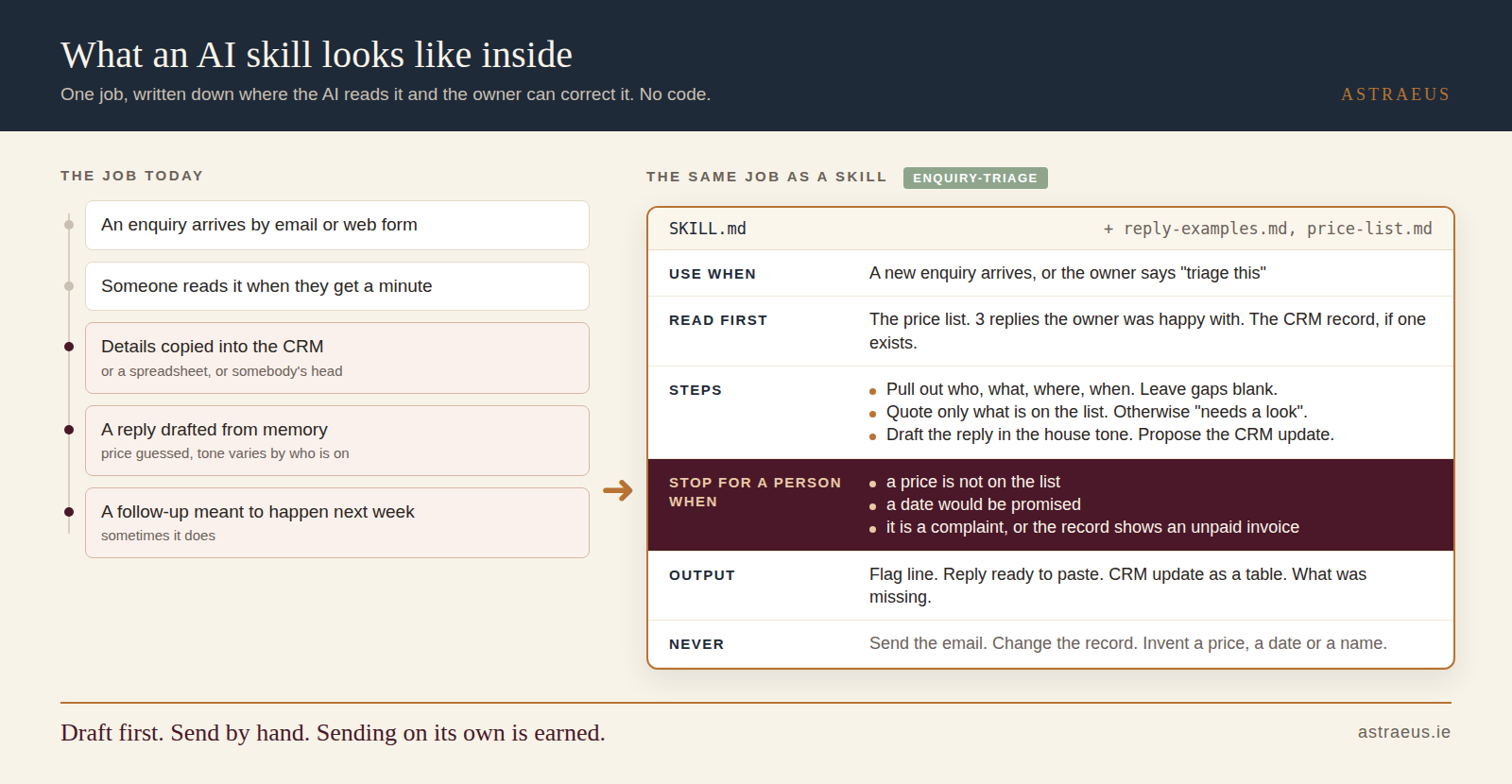
The common Agent Skills format uses a folder with a plain-text file called SKILL.md. This explains what the skill is for and how to do the task. Supporting files can hold a report template, a checklist, a price list or examples of good work. More advanced skills can include code, but the two downloads below use instructions and reference files only.
You can read and edit the instructions. If your prices or process change, update the relevant file and test the result again.
 Enlarge diagram
 Two more examples you can try
The downloads at the end contain complete example skills for enquiry replies and missing-document reminders. Both prepare work for someone to check. They are sample workflows to adapt, not client case studies or ready-made connections to your systems.
Turn an enquiry into a draft reply
Set up once: add your price list and examples of how you normally reply to the skill. Keep them current. A connection to your CRM needs separate setup.
Each time: select the enquiry-triage skill and paste the customer’s message, with any relevant customer notes.
You get: a draft reply, the details to add to your customer record and any questions that need answering first. If the customer asks about a job that is not on the price list, the instructions tell the assistant to flag it instead of inventing a quote.
You check the price and wording, then send the reply and update the record yourself. The download tells the assistant to draft only; keep sending and editing permissions disabled while testing it.
Prepare reminders for missing documents
Set up once: add the document checklist and examples of your reminder messages. For an accountancy practice, this could cover the information needed to prepare a filing.
Each time: select the missing-documents-chase skill and supply the current tracker and deadline. If the deadline is already in the tracker, you do not need to repeat it.
You get: a list of missing items by client, draft messages and exceptions to review. For example, a client marked “do not chase” should be flagged for the practice manager.
The practice checks the list against its records and sends the approved messages. The skill is preparing the admin around the deadline; the accountant remains responsible for the work.
How to tell whether your skill is useful
Try it on a few examples you have already handled. Compare its output with what you actually needed. Include something incomplete or unusual so you can see whether it asks a sensible question or fills the gap with a guess.
Then use it on a new task under supervision. Count the time you spend checking and correcting, as well as the time it saves drafting. If you have to rewrite most of the answer, improve the instructions or choose a narrower task.
Keep the material it uses current. A well-written procedure with an old price list will still produce the wrong price. For anything sent to a customer or used for a consequential decision, decide who checks it and what they must verify.
Where Astraeus can help
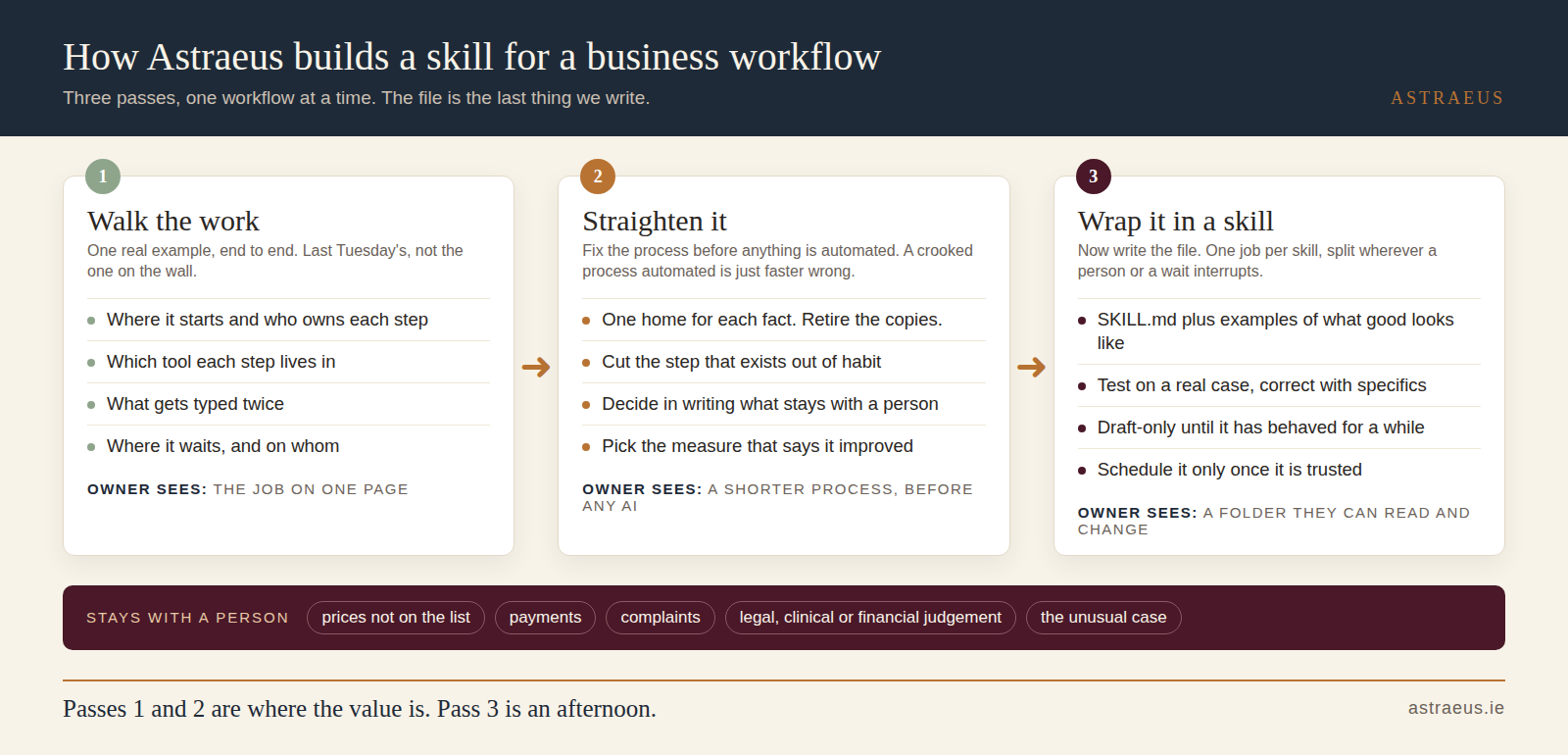
You can make a start yourself with the prompt above. Help becomes useful when a job involves several people, conflicting records or connections to business systems.
We work through an example with the person who does the job, agree the steps and decisions, then build and test the skill. That includes checking which information the assistant needs and what it is allowed to do.
 Enlarge diagram
 You can also read our guide to choosing your first AI workflow.
Frequently asked questions
Do I need to write a prompt every time?
No. Once the skill is installed and configured, select it and provide the input it needs. For our business-analysis skill, that can be a company URL. Add extra instructions only when you want to change the usual task; the skill already contains the process.
Can I create a skill just by asking?
Yes. Describe the task, share an example of the result you want and ask the AI to turn your process into a reusable skill. Review the instructions it creates, save or install the skill, then test it on a few examples. A first draft still needs checking.
Do skills work in ChatGPT as well as Claude?
Yes, both support skills. Availability depends on your account and workspace settings. Use the linked product guides above to check access and installation. A skill does not automatically give the assistant access to your email, files or business systems.
How is a skill different from a saved prompt?
A saved prompt can already be useful. A skill gives a repeated task a name, instructions for when to use it and a place for supporting files or scripts. A compatible assistant can select it when relevant, or you can ask for it by name.
Do I need a developer?
You can describe a task and create an instructions-only skill without writing code. Connecting business systems, adding scripts or scheduling work can require technical help. Start with a task you can run from information you provide yourself.
Can I use real client information?
Start with anonymised examples. Before using client information, check your organisation policy, the data settings of your provider and which files or systems the assistant can access. Instructions in a skill do not replace access controls or your responsibility to protect client data.